JSL3 Facebook Wall Feed
Displays your Facebook wall as a widget or through shortcode on a post or page.
Menu
- Description
- Installation
- Configuration
- Widget Usage
- Shortcode Usage
- Frequently Asked Questions
- Change Log
- Upgrade Notice
- Comments
- Add a Comment
Description
Displays your Facebook wall as a widget or through shortcode on a post or page. Makes use of Fedil Grogan’s Facebook Wall Feed for WordPress code and changes suggested by Daniel Westergren and Neil Pie. German translation provided by Remo Fleckinger. Facebook Graph API v2.0 bug fix provided by Andrew Bloom.
Back to the top
Installation
- Download the JSL3 Facebook Wall Feed v1.7.4 widget plugin.
- Extract the zip file to the ‘/wp-content/plugins/’ directory.
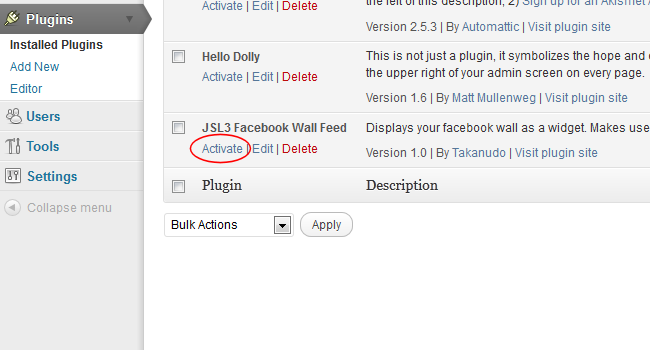
- Activate the plugin through the ‘Plugins’ menu in WordPress.
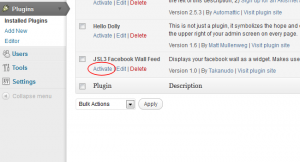
Activate the plugin through the ‘Plugins’ menu in WordPress.
Configuration
- Create your Facebook App. NOTE: You cannot use a Facebook Page to create a Facebook App. You must use your personal Facebook profile. However, once you create your Facebook App, you can use its App ID and App Secret along with the Facebook ID of the Facebook Page you want to get the feed from on the settings page for the plugin.
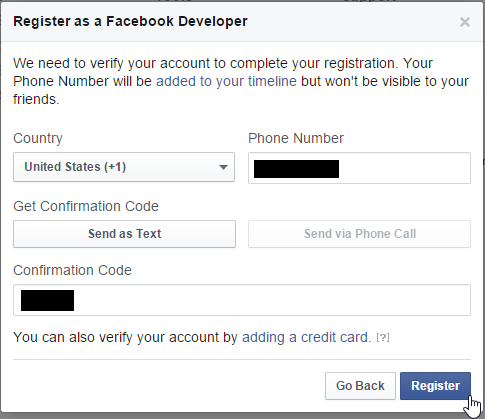
- If this is your first time creating a Facebook App, you will need to register. Otherwise, skip to step e.

If this is your first time creating a Facebook App, you will need to register.
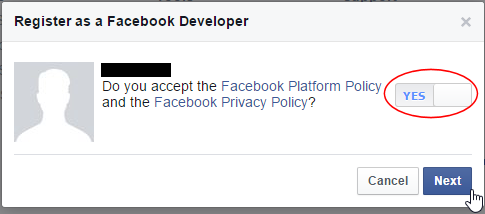
- Toggle the button to Yes to agree to the Facebook Policies and then click Next.
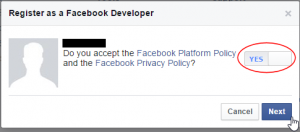
Toggle the button to ‘Yes’ to agree to the Facebook Policies and then click ‘Next.’
- After you enter the confirmation code that Facebook sent to your phone, click Register.
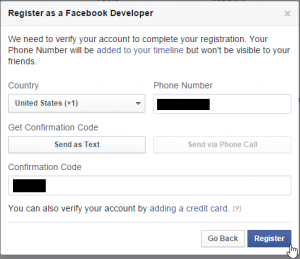
After you enter the confirmation code that Facebook sent to your phone, click ‘Register.’
- Click Done to complete the registration.
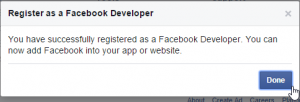
Click ‘Done’ to complete the registration.
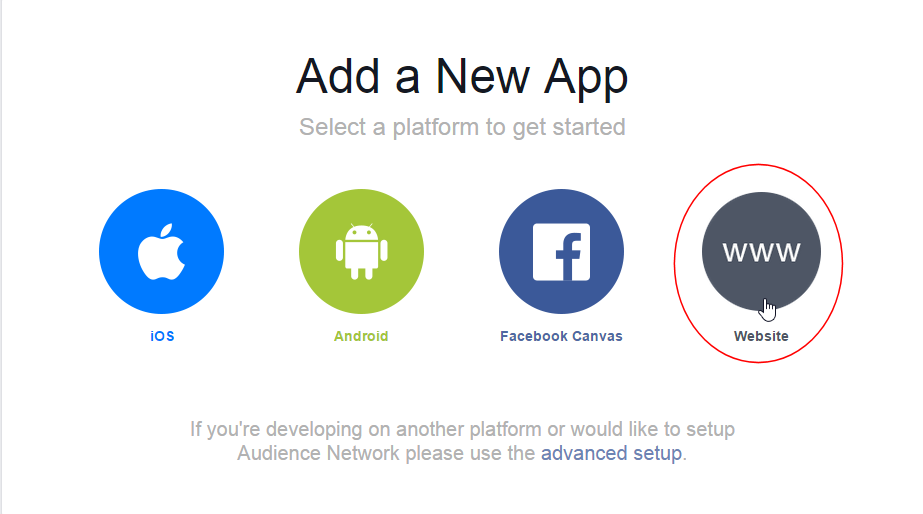
- When you Add a New App, select the Website option.
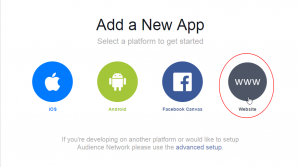
When you ‘Add a New App’, select the ‘Website’ option.
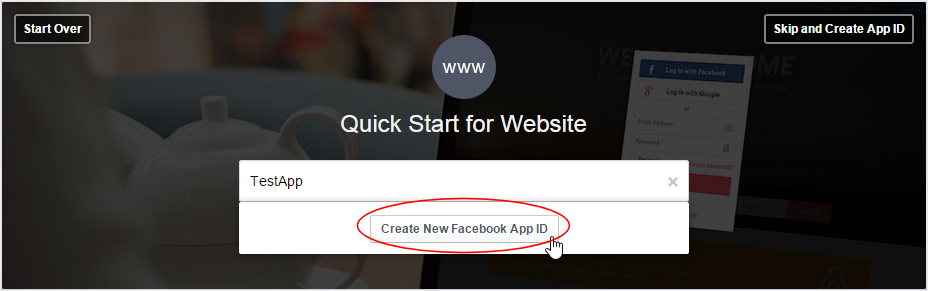
- Click Create New Facebook App ID.
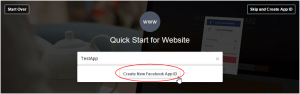
Click ‘Create New Facebook App ID.’
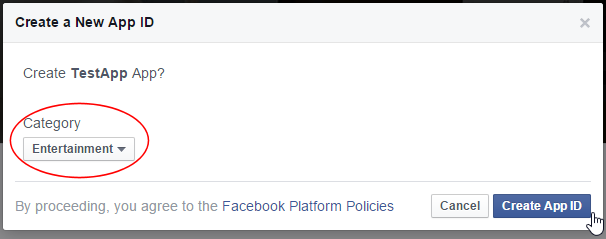
- Select a category that best fits your WordPress site and then click Create App ID.
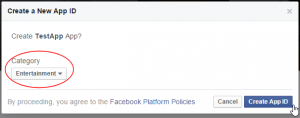
Select a category that best fits your WordPress site and then click ‘Create App ID.’
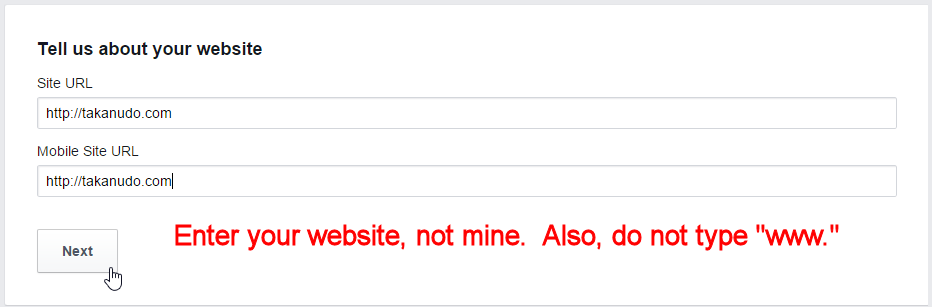
- Enter your Site URL and Mobile Site URL in the Tell us about your website section at the bottom of the page. Do not enter www. Then click Next.
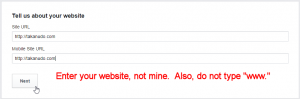
Enter your ‘Site URL’ and ‘Mobile Site URL’ in the ‘Tell us about your website’ section at the bottom of the page.
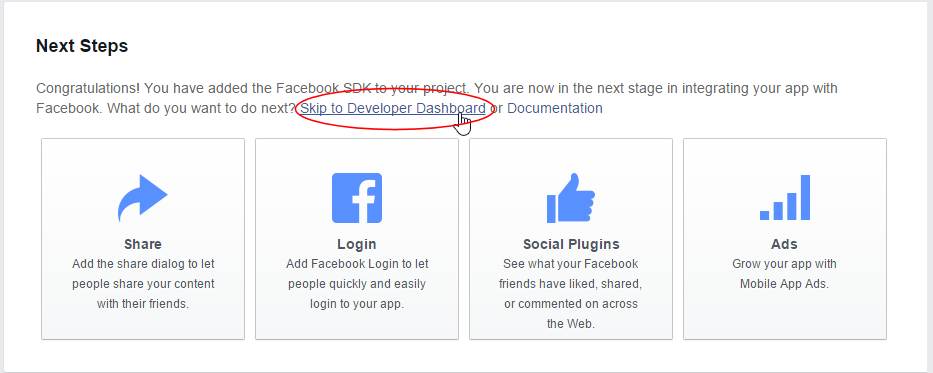
- Click the Skip to Developer Dashboard link in the Next Steps section at the bottom of the page.
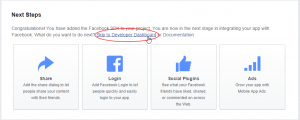
Click the ‘Skip to Developer Dashboard’ link in the ‘Next Steps’ section at the bottom of the page.
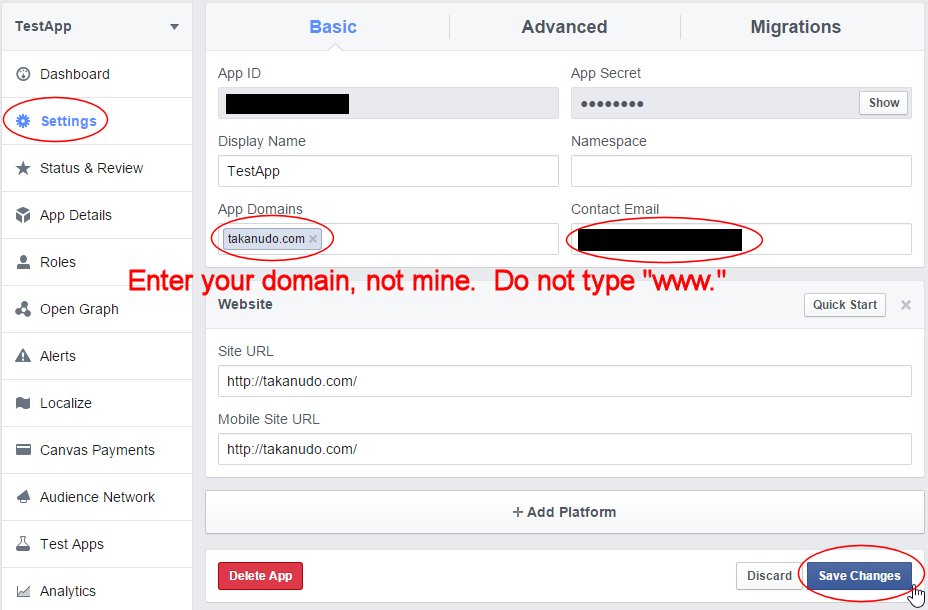
- Select the Settings menu option. Enter your App Domain and Contact Email. Then click Save Changes.
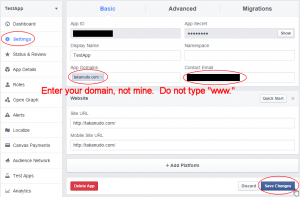
Select the ‘Settings’ menu option. Enter your ‘App Domain’ and ‘Contact Email.’
- Click the Show button to reveal your App Secret.

Click the ‘Show’ button to reveal your ‘App Secret.’
- Make note of your App ID and App Secret. You will need them in step 2.

Make note of your ‘App ID’ and ‘App Secret.’
- Select the Status & Review menu option. Change the toggle button to Yes to make you Facebook App available to the public.
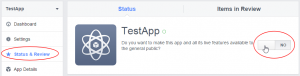
Select the ‘Status & Review’ menu option. Change the toggle button to ‘Yes’ to make you Facebook App available to the public.
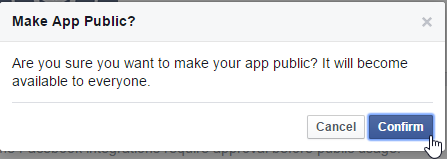
- Click Confirm to complete the creation of your Facebook App.
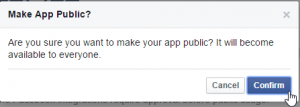
Click ‘Confirm’ to complete the creation of your Facebook App.
- If this is your first time creating a Facebook App, you will need to register. Otherwise, skip to step e.
- Go to JSL3 Facebook Wall Feed under Settings on your WordPress Administration menu. Enter the App ID and App Secret you recorded earlier. Also, enter your Facebook ID. If you do not know your Facebook ID, you can find it at http://findmyfacebookid.com.
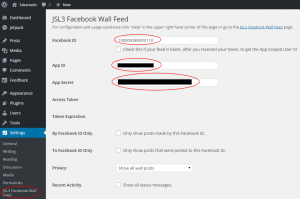
Go to ‘JSL3 Facebook Wall Feed’ under ‘Settings’ on your WordPress Administration menu. Enter the ‘App ID’ and ‘App Secret’ you recorded earlier. Also, enter your ‘Facebook ID.’
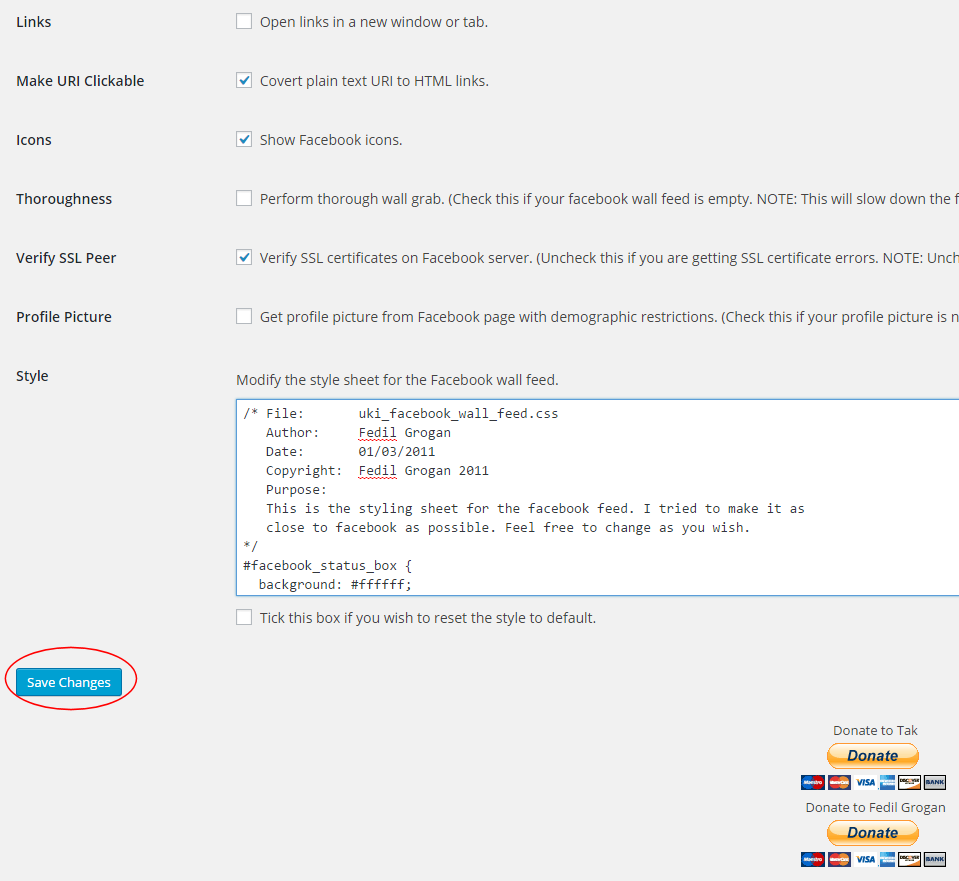
- Click the Save Changes button at the bottom of the page. You will be redirected to Facebook. You may be prompted to login a couple of times.
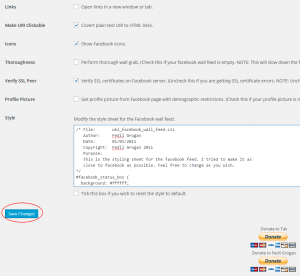
Click the ‘Save Changes’ button at the bottom of the page. You will be redirected to Facebook.
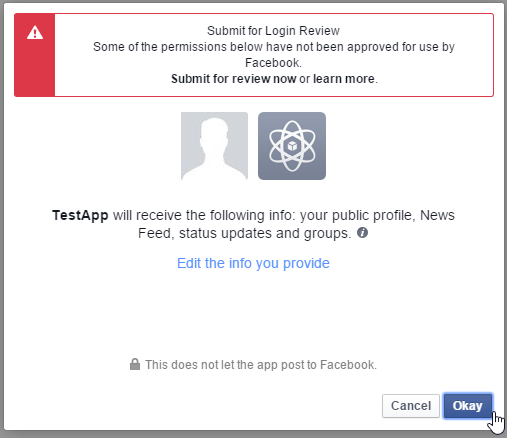
- Click Okay to give your Facebook App permission to access your public profile, News Feed, status updates and groups.
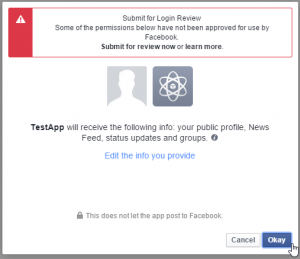
Click ‘Okay’ to give your Facebook App permission to access your public profile, News Feed, status updates and groups.
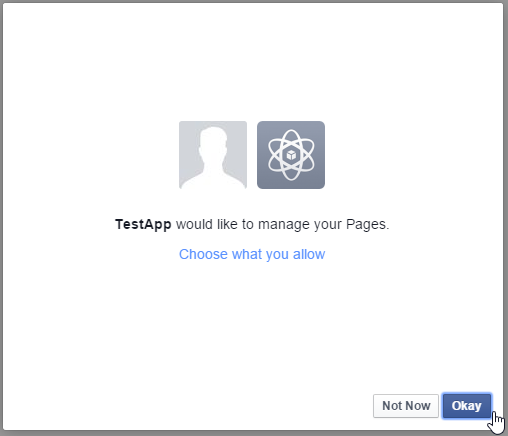
- Click Okay to give your Facebook App permission to manage your Pages.
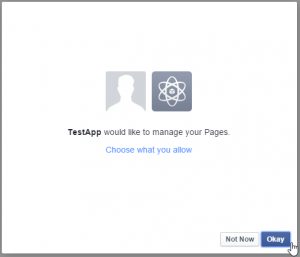
Click ‘Okay’ to give your Facebook App permission to manage your Pages.
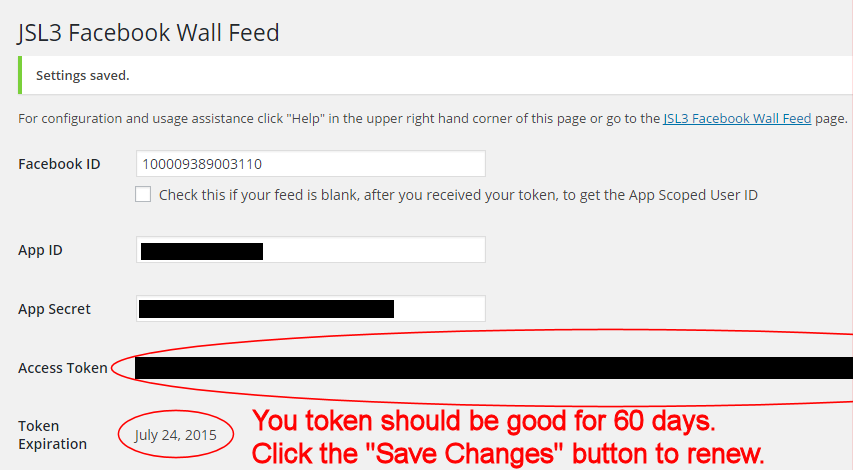
- You will be returned to the JSL3 Facebook Wall Feed settings page with your Access Token and its expiration date.
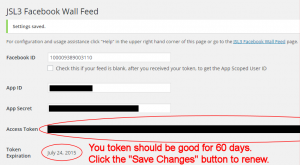
You will be returned to the JSL3 Facebook Wall Feed settings page with your Access Token and its expiration date.
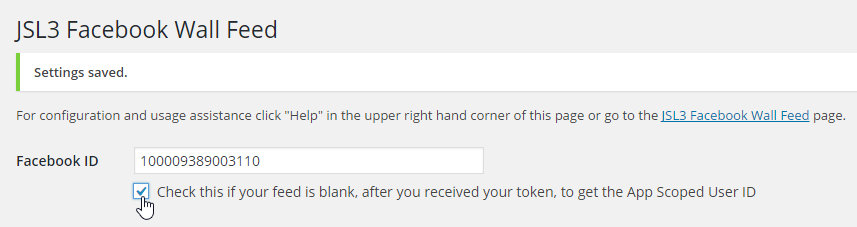
- NOTE: Facebook has changed how the Facebook ID is used with new Facebook Apps. If, after adding your widget to your WordPress site, you see that the feed is blank, go back to the settings page for the plugin and check the box below your Facebook ID and then click the Save Changes button. This will tell the plugin to request the App Scoped User ID instead of your Facebook ID.
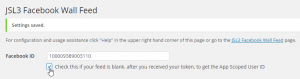
If, after adding your widget to your WordPress site, you see that the feed is blank, go back to the settings page for the plugin and check the box below your Facebook ID and then click the ‘Save Changes’ button.






Widget Usage
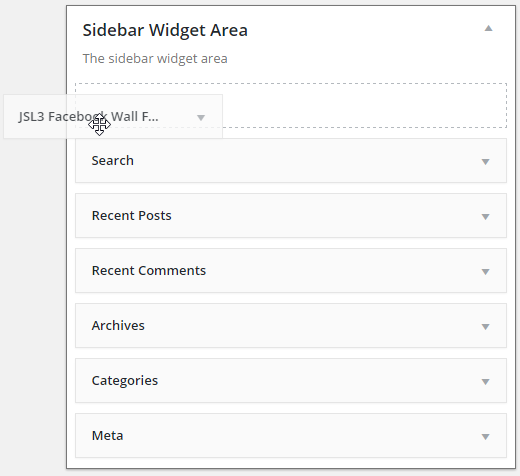
- Go to Widgets under Appearance on your WordPress Administration menu. Drag the JSL3 Facebook Wall Feed widget to the sidebar of your choice.
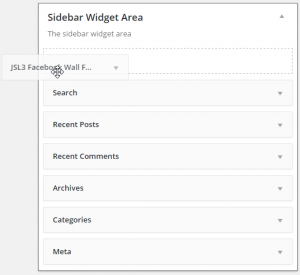
Drag the ‘JSL3 Facebook Wall Feed’ widget to the sidebar of your choice.
- Give the widget a title (or leave it blank) and enter how many posts you want to get from your wall. You may also enter the Facebook ID of the Facebook page you want to display in the widget. If you leave the Facebook ID blank, the widget will use the Facebook ID entered on the settings page for the plugin. Click Save.
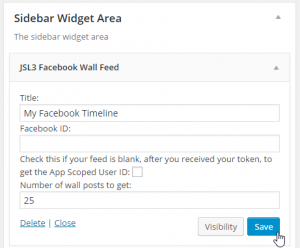
Give the widget a title (or leave it blank) and enter how many posts you want to get from your wall. You may also enter the Facebook ID of the Facebook page you want to display in the widget.
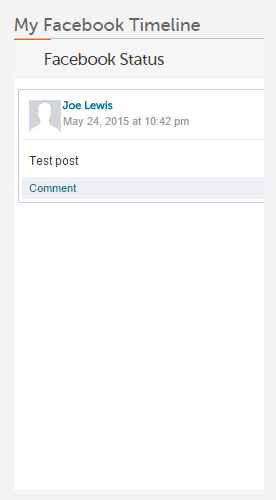
- Go check out your Facebook Wall Feed on your WordPress site.
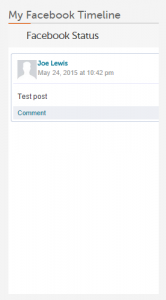
Go check out your Facebook Wall Feed on your WordPress site.

Shortcode Usage
- Add the shortcode [jsl3_fwf] or [jsl3_fwf limit=”1″] or even [jsl3_fwf limit=”1″ fb_id=”1405307559″] to the Text view of a post or page. If you do not enter a Facebook ID, the plugin will use the Facebook ID entered on the settings page for the plugin. If your feed is blank, try setting the fb_id property to your App Scoped User ID. If you do not know your App Scoped User ID, set the app_scoped_user_id property to true like this: [jsl3_fwf limit=”1″ fb_id=”1405307559″ app_scoped_user_id=”true”]
![Add the shortcode [jsl3_fwf] or [jsl3_fwf limit="1"] or even [jsl3_fwf limit="1" fb_id="1405307559"] to the 'Text' view of a post or page.](http://takanudo.com/wp-content/uploads/2015/05/screenshot-25-300x162.png)
Add the shortcode [jsl3_fwf] or [jsl3_fwf limit=”1″] or even [jsl3_fwf limit=”1″ fb_id=”1405307559″] to the ‘Text’ view of a post or page.
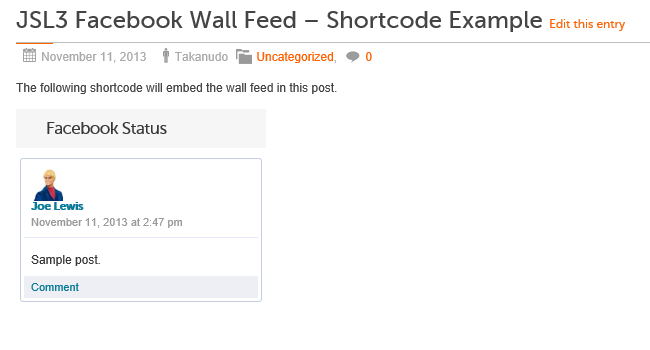
- View your Facebook Wall Feed on your WordPress post or page.
View your Facebook Wall Feed on your WordPress post or page.
![Add the shortcode [jsl3_fwf] or [jsl3_fwf limit="1"] or even [jsl3_fwf limit="1" fb_id="1405307559"] to the 'Text' view of a post or page.](http://takanudo.com/wp-content/uploads/2015/05/screenshot-25.png)
Frequently Asked Questions
- Where can I find support for this plugin?
- How do I use shortcode to add the Facebook Wall Feed to a post or page?
- Can I translate the plugin?
- How do I get rid of the ‘Facebook Status’ box?
- How can I adjust the width of the Facebook Wall Feed?
- How do I adjust the height of the Facebook Wall Feed?
- Why is my token set to expire in less than 24 hours?
- What does the error “OAuthException: Error validating access token: Session has expired at unix time [UNIX TIME]. The current unix time is [UNIX TIME]” mean?
- What does the error “OAuthException: Error validating access token: The session has been invalidated because the user has changed the password” mean?
- What does the error “OAuthException: An access token is required to request this resource” mean?
- What does the error “Exception: No node specified” mean?
- What does the error “Exception: SETTINGS: Unrecognized pref_type 0 for NullProfileSettings pref name default_non_connection_tab” mean?
- What does “An error occurred with [Your App Name]. Please try again later” mean?
- Why is my feed blank?
- Where can I find support for this plugin?Just add a comment and I will do my best to help you.
Back to the FAQ menu - How do I use shortcode to add the Facebook Wall Feed to a post or page?Switch to HTML view and add the following:
[jsl3_fwf]To limit the number of posts displayed add the ‘limit’ attribute:[jsl3_fwf limit="1"]To specify a specific feed to display add the ‘fb_id’ attribute and enter the feed’s Facebook ID:[jsl3_fwf limit="1" fb_id="1405307559"]If you do not enter a Facebook ID in the shortcode, the plugin will use the Facebook ID entered on the settings page for the plugin.
Back to the FAQ menu - Can I translate the plugin?I would be happy if you translated the plugin. You can use the ‘default.po’ file found in the ‘wp-content/plugins/jsl3-facebook-wall-feed/languages’ directory. Use Poedit to translate the plugin into your language and then save the PO file using the text domain (‘jsl3-fwf’), language code and country code as the name. For example, if you translate the plugin into German, you should save the file as ‘jsl3-fwf-de_DE.po’. Finally, place the translated PO file and its corresponding MO file in the ‘wp-content/plugins/jsl3-facebook-wall-feed/languages’ directory.Let me know the URL of the site with the translated plugin by posting a comment on the this page.
Back to the FAQ menu - How do I get rid of the ‘Facebook Status’ box?To remove the ‘Facebook Status’ box add the following to the bottom of the style sheet on the settings page for the plugin:
/* Remove Facebook Status */

#facebook_status_box h2

{

display: none;

}
Back to the FAQ menu - How can I adjust the width of the Facebook Wall Feed?To adjust the width of the Facebook Wall Feed add the following to the bottom of the style sheet on the settings page for the plugin:
/* Adjust width */

#facebook_status_box

{

width: 225px;

}
Change the number in front of “px” to one that fits for you.
Back to the FAQ menu - How do I adjust the height of the Facebook Wall Feed?To adjust the height of the Facebook Wall Feed add the following to the bottom of the style sheet on the settings page for the plugin:
/* Adjust height */

#facebook_status_box

{

height: 500px;

}
{
height: 460px;
}
Change the numbers in front of “px” to ones that fits for you. Try to keep the height in #facebook_status_box about 40px greater than the height in #facebook_canvas if you are keeping the ‘Facebook Status’ box at the top of the feed.
Back to the FAQ menu - Why is my token set to expire in less than 24 hours?I am not sure why Facebook will give some users a short-lived token. Facebook will only allow you to attempt to renew your token once per 24 hours. Try waiting 24 hours from the last time you clicked “Save Changes” on the settings page for the plugin, then try again. If you do not get a token that lasts about 60 days, then you may want to try creating a new Facebook App for the plugin.
Back to the FAQ menu - What does the error “OAuthException: Error validating access token: Session has expired at unix time [UNIX TIME]. The current unix time is [UNIX TIME]” mean?It means your access token has expired. Go to the settings page for the plugin and click “Save Changes” to renew your token.
Back to the FAQ menu - What does the error “OAuthException: Error validating access token: The session has been invalidated because the user has changed the password” mean?It usually means you changed your Facebook password recently. Go to the settings page for the plugin and click “Save Changes” to validate your session.
Back to the FAQ menu - What does the error “OAuthException: An access token is required to request this resource” mean?It usually means you do not have an access token. Check that your App ID and App Secret are correct. Then click “Save Changes” on the settings page for the plugin.
Back to the FAQ menu - What does the error “Exception: No node specified” mean?It usually means you have not set your Facebook ID. Check that you have entered your Facebook ID on the settings page for the plugin. Then click “Save Changes” on the settings page for the plugin.
Back to the FAQ menu - What does the error “Exception: SETTINGS: Unrecognized pref_type 0 for NullProfileSettings pref name default_non_connection_tab” mean?It usually means are using an incorrect Facebook ID. Check that your Facebook ID is correct. Then click “Save Changes” on the settings page for the plugin.
Back to the FAQ menu - What does “An error occurred with [Your App Name]. Please try again later” mean?This is a Facebook error and may also include the following message:
API Error Code: 191
API Error Description: The specified URL is not owned by the application
Error Message: Invalid redirect_uri: Given URL is not allowed by the Application configuration.This error means that the App Domain and Site URL for your Facebook App do not match the domain of the website where you are using the plugin. Go to https://developers.facebook.com/apps and click “Edit Settings”. Under “Basic”, change your “App Domain” to match the domain of the website where the plugin is located. In the “Select how your app integrates with Facebook” section, under “Website with Facebook Login”, change your “Site URL” to match the URL of the website where the plugin is located. Do not use “www.” in your App Domain or Site URL.
Back to the FAQ menu - Why is my feed blank?First, a blank feed usually indicates an invalid Facebook ID. If you do not know your Facebook ID, then go to https://developers.facebook.com/tools/explorer. Click “Get Access Token”. You may be prompted to log in. If you are prompted to “Select permissions”, click “Get Access Token”. In the text box next to the “Submit” button, enter the “Facebook Username” used in your Facebook URL (for example, my Facebook URL is https://www.facebook.com/takanudo so my Facebook Username is takanudo) followed by “?fields=id”. Click Submit. Your Facebook ID will be in the results.Second, The limit property tells Facebook how many posts to return. Some of those posts could be filtered out depending on how you have configured the plugin. For example, if you set the limit to one, the post returned may be filtered out if you have “Only show posts made by this Facebook ID” checked or “Show all status messages” unchecked or “Privacy” set to “Show only wall posts labeled public”. The thoroughness option forces the plugin to keep making requests to Facebook until the limit number has been reached, but it will slow down the plugin dramatically.
Back to the FAQ menu
Change Log
1.7.4
- Added a feature to request your App Scoped User ID if your Facebook ID returns a blank feed.
- Updated the Facebook App configuration guide.
1.7.3
- Added the ability to only show posts that were posted to the Facebook ID listed in the plugin’s settings page.
- Fixed a bug introduced in Facebook Graph v2.0..
1.7.2
- Fixed a bug with how the access token renew check was scheduled.
1.7.1
- Added group permissions to the feed.
1.7
- Added the ability to display multiple feeds.
- Added a German translation to the plugin.
1.6
- This update displays the likes count for each post and comment.
1.5.5
- Updated the help section.
1.5.4
- This update should send fewer notification emails.
- Changes all URLs to use https.
1.5.3
- Fixed a minor bug introduced in v1.5.2
1.5.2
- Fixed privacy setting to work with the change Facebook made to how they display privacy settings in the feed.
- Minor change to how the style sheet is enqueued into the header.
1.5.1
- Fixed a bug in the shortcode introduced in v1.5
1.5
- Added an option to disable the make_clickable() WordPress function added in v1.4.2
- The plugin will now notify the WordPress admin that their Facebook access token is about to expire a week from the expiration date.
1.4.2
- Added an option to disable the make_clickable() WordPress function added in v1.4.2
- The plugin will now notify the WordPress admin that their Facebook access token is about to expire a week from the expiration date.
- Added make_clickable() WordPress function to convert plain text URI to HTML links.
1.4.1
- Added CRON schedule to refresh expired tokens because Facebook no longer allows non-expiring tokens.
- Fixed 1 pixel images filtered through Facebook’s safe_image.php file.
- Added ability to turn off displaying Facebook icons.
- Added additional security features.
1.3.1
- Made the feed validate XHTML 1.0 Strict.
- Made a cURL and allow_url_fopen check.
- Feed will now use the same locale as WordPress.
- Added ability to turn of SSL certificate verification.
- Added ability to display profile picture from Facebook pages with demographic restrictions.
1.2
- Added default.po file to support localization.
- Added thoroughness check.
- Added ability to show status messages.
- Added ability to show post comments.
- Added ability to open links in a new window or tab.
- Feed will now display a greater variety of wall posts.
- Accounted for newline character
1.1
- Fixed a PHP Notice error when displaying video posts.
- Added shortcode capability.
- Added a property to limit posts to only the user (posts by other users are not displayed).
- Added a privacy setting to limit the feed to only public posts.
- Added contextual help.
- Added better error handling.
1.0
- This is the initial version.
Upgrade Notice
1.7.4
Added a feature to request your App Scoped User ID if your Facebook ID returns a blank feed. Also, I finally updated the Facebook App configuration guide.
1.7.3
Added a feature to limit the posts displayed in the feed to only posts that were directly posted to the timeline associated with the Facebook ID you assign to the plugin. Also, fixed a incompatibility bug introduced with the latest Facebook Graph API.
1.7.2
Fixed a timing bug where the access token renew check would be scheduled to run before the expiration date was stored in the database.
1.7.1
A minor update to add group permissions to the feed.
1.7
The plugin now has the ability to display feeds from different Facebook pages. Also, a German translation of the plugin has been provided.
1.6
Facebook removed the likes count from the feed. This update uses a different method to get the likes count for each post. The plugin also displays the likes count for each comment.
1.5.5
The help section has been updated.
1.5.4
Hopefully this update will send fewer email notifications when your token is about to expire. Also, changed all URLs to use https.
1.5.3
Fixed a minor bug introduced in v1.5.2.
1.5.2
Facebook changed public privacy setting to be a blank entry, so I have adjusted the plugin to account for that. Also, for some users, the style sheet would be embedded more than once. This update should fix that.
1.5.1
This is a minor shortcode bug fix.
1.5
This update adds an option to disable the make_clickable() WordPress function added in v1.4.2. Also, the automatic Facebook access token renewal added in v1.4.1 never worked properly. So now the plugin will now notify the WordPress admin that their Facebook access token is about to expire a week from the expiration date. Renewing the token should simply be a matter of clicking “Save Changes” on the settings page for the plugin.
1.4.2
This is a minor update that adds the make_clickable() WordPress function to convert plain text URI to HTML links.
1.4.1
This update adds additional security features. It also adds a CRON schedule to refresh expired tokens because Facebook no longer allows non-expiring tokens.
1.3.1
This update should validate under XHTML 1.0 Strict. It also checks to see if cURL is loaded or allow_url_fopen is on. The feed will now use the same locale setting that WordPress is using.
1.2
This upgrade provides support for localization. Feel free to use the ‘default.po’ file in the ‘languages’ directory to create a translation of the plugin.
1.1
This upgrade provides added security measures and better error handling.
1.0
This is the initial version.
Back to the top
Hi! First, a tremendous app!
I am now receiving the same error you are receiving: OAuthException: Error validating access token: Session has expired on Tuesday, 05-May-15 16:20:17 PDT. The current time is Thursday, 21-May-15 21:08:10 PDT.
This time, however, I get this when I try to save changes (which usually fixes the issue):
Invalid Scopes: friends_groups, offline_access. This message is only shown to developers. Users of your app will ignore these permissions if present. Please read the documentation for valid permissions at: https://developers.facebook.com/docs/facebook-login/permissions
I suspect Facebook has changed requirements. What can I do to resolve this issue? Thanks!
After checking the net, this seems to fix the issue. Although it is not an official fix, perhaps it may help someone looking here?
“Hey Luigi,
I had the exact same problem.
It looks like a Facebook is updating it’s API? (All apps are being upgraded to Graph API v2.0 or above.)
I found the solution.
Go to line 746 of plugins/jsl3-facebook-wall-feed/php/class-jsl3-facebook-wall-feed.php and remove “friends_groups” and “offline_access”
Then go to the plugin’s setting page and hit save.
That worked for me but I don’t know if it affects any features of this plugin. You may want to wait for an official update from the plugin’s author.”
Credit to Andrew Bloom: https://wordpress.org/support/topic/friends_groups-offline_access-token-problem 🙂
THANK YOU!!
I am having trouble renewing my FB token. Whenever I try, it fails with the following error message from Facebook:
Invalid Scopes:friends_groups, offline_access. This message is shown only to developers. Users of your app will ignore these permissions if present.
I am running the latest version of 4.2.2 of WordPress. This is a recent upgrade, but I really can’t rollback to an older version of WordPress at this point. I’d really like to keep the widget if I can. Are you still supporting this widget? If so, can you help me? Thanks, Ted
Since Nay 16th the facebook wall is not working on my website.
I have the following error message : OAuthException: Error validating access token: Session has expired on Saturday, 16-May-15 07:20:21 PDT. The current time is Friday, 22-May-15 18:32:42 PDT.
and when I try to go to the settings page for the plugin options and click “Save Changes” at the bottom of the page to renew my token I have this error message :
Invalid Scopes: friends_groups, offline_access. This message is only shown to developers. Users of your app will ignore these permissions if present. Please read the documentation for valid permissions at: https://developers.facebook.com/docs/facebook-login/permissions
I can see that you have the same issue on your own website on your write column.
If you could please solve it?
thanks in advanced.
Anna
If I can please have some help on this issue.
I have till tomorrow to fix it or i’ll have to find another app.
Thank you.
Hi,
We’ve been using your plugin for a while now and once in a while we need to renew the access token. This never gave any problems until now. When I click ‘Save changes’ on the plugin settings page, I get the following error message on Facebook:
Invalid Scopes: friends_groups, offline_access. This message is only shown to developers. Users of your app will ignore these permissions if present. Please read the documentation for valid permissions at: https://developers.facebook.com/docs/facebook-login/permissions
I didn’t change any settings, but somehow I can’t renew the access token (which will expire today).
Do you have any suggestions?
Thanks a lot!
https://wordpress.org/support/topic/friends_groups-offline_access-token-problem has the quick fix. Took me 5 minutes at most.
you probably know by now that Step M has been modified by FB? we have to “Start a Submission” for Approval. then the next screen asks for all kinds of Login Permission fields giving us a choice of dozens (have no idea which to check). and trying to get a diff FB feed plugin working i got most completed and hit the “Test User” which no matter what i did couldn’t satisfy FB requirement so the App never even gets submitted for FB Approval. when i see 99% of my friends barely able to login to email, i wonder how many can actually get some of this stuff working? i hate giving up!
a question i have looking at your plugin – does it allow ONLY my FB feed into MY WP site or does it allow ANY public FB page to feed my WP site?
thank you!
I have never submitted my Facebook Apps for approval. I even created an entirely new Facebook account and a new Facebook App this past weekend to create the new configuration guide.
The plugin should work with any public feed. You can even add multiple widgets with each pointing to a different feed. All you need to know is the Facebook ID for the feed you want to display and then enter that in the widget (or shortcode if that is your preference). If you leave the Facebook ID blank in the widget (or leave it out of the shortcode), the Facebook ID you entered on the settings page for the plugin is used as a fallback.
I was trying to update my Facebook wall feed plugin and got this error message:
Invalid Scopes: friends_groups, offline_access. This message is only shown to developers. Users of your app will ignore these permissions if present. Please read the documentation for valid permissions at: https://developers.facebook.com/docs/facebook-login/permissions
I’m not very technologically savvy and don’t have a web designer I can call on so please walk me through what to do in plain English.
Thanks for any help you can give. I value your plugin on my site!
This problem was fixed in version 1.7.3. Please update your plugin to the latest version.
Feed has wirked perfectly for the past couple of years but all I get now is the following message
OAuthException: (#803) Cannot query users by their username (bella.chic.3154)
I can’t find this error listed on your site so am unsure what it means or how to fix it.
Any help would be appreciated.
Thanks
Make sure you have the latest version of the plugin. Then change the Facebook ID from bella.chich.3154 to 100006150460119 and click the “Save Changes” button. If that still doesn’t work, then click the “Check this if your feed is blank, after you received your token, to get the App Scoped User ID” box under the Facebook ID and click the “Save Changes” button again.
That’s fixed it.
Many Thanks
Recently, the plug-in started pulling in and displaying low resolution versions of photos.
What line number in ‘/wp-content/plugins/jsl3-facebook-wall-feed/php/class-uki-facebook-wall-feed.php’ needs to be modified and to what?
In the past it was like 830, changing return $result; to return str_replace(‘_s’, ‘_n’, $result);
… but it appears that a recent update may have changed that back?
I have not been able to figure out how to get larger images from the feed since Facebook made their latest changes. The only solution I can think of would be to make a separate Facebook Graph request for each post that you want a larger image. Unfortunately, I do not have the time to implement a feature like that. You might be better off looking for an alternative plugin.
I am trying to make some modifications to the home page of a client’s website. To do so, I have to find the place where the JSL3 Facebook Wall Feed shortcode was inserted in the html for the home page. However, the site was developed entirely via backend coding instead of using WordPress’s more user friendly “Edit Page” function. I tried selecting Appearance / Editor / Home Page Page Template and searching for the string “jsl3_fwf” but could not find the string. I’m stumped! Where else should I be looking for the shortcode?
Try looking for function call within the php of the template that looks similar to the following:
the_widget( 'JSL3_FWF_Widget', array( 'title' => '', 'limit' => 25 ), null );
I have version JSL31.7.4 on my site. The problem is that the FB feed is not updating. The most recent post is February 13, 2015. Can you assist me in getting the feed to display FB posts “real-time” ?
Do you having any caching plugins or plugins that are designed to speed up the loading time of your WordPress site? Do you have any similar utilities running on your web server in general? If so, try clearing their cache.
not to my knowledge…
Thank you for your quick response. This happened once before at the end of last year and then seemingly “self healed.” I will check with my web hosting co. Thanks again.
For the first time since using this plug-in (it’s been a few years), I get an error from Facebook when I click “save” within the plug-in settings to reset my token. It says:
“Invalid Scopes: offline_access. This message is only shown to developers. Users of your app will ignore these permissions if present. Please read the documentation for valid permissions at: https://developers.facebook.com/docs/facebook-login/permissions”
Because of this, I am not able to refresh my token. What to do?
Thanks for providing this app!
Never mind. I found in comments and replies what I needed.to do to address this issue. Thanks!
hi,
thanks for a great plugin and your offer of support. i am using it at the above website and as you can see the facebook icons are causing a problem. i have the option unchecked in settings. i can’t figure out how to get rid of them. really don’t want them. also can’t figure how to change the css to make more room for them if they have to stay. thank you. drew
I’m assuming by “facebook icons” you are referring to the profile picture. If so, you can get rid of them by adding the following to the bottom of the style sheet on the settings page for the plugin:
#facebook_status_box .fb_post .fb_photo img

{

display: none;

}
If you also want to get rid of the Facebook like icon, then you should add the following the to the bottom of the style sheet as well:
#facebook_status_box .fb_likes

{

display: none;

}
I have the newest plugin 1.7.4 and I get this error after going step by step through your directions.
“Invalid Scopes: user_groups, read_stream. This message is only shown to developers. Users of your app will ignore these permissions if present. Please read the documentation for valid permissions at: https://developers.facebook.com/docs/facebook-login/permissions”
Did Facebook update their API again and the plugin needs to be updated?
At what step in the directions are you getting this message?
This happens after I put all the settings in the plugin and click save.
I guess Facebook is starting to limit their permissions for newly created Facebook Apps. Give this a try:
NOTE: These instructions are for the unmodified 1.7.4 version of the plugin.
1. Open ‘/wp-content/plugins/jsl3-facebook-wall-feed/php/class-jsl3-facebook-wall-feed.php’
2. Line 796 is the following:
"scope=user_groups,read_stream,manage_pages,user_status&" .3. Replace it with the following:
"scope=user_posts,manage_pages,user_status&" .4. Save the file
5. Click “Save Changes” on the settings page for the plugin.
This will limit what is displayed in your feed to posts instead of your entire wall feed. Let me know how it goes.
This error is showing up on my feed?
GraphMethodException: Unsupported get request. Please read the Graph API documentation at https://developers.facebook.com/docs/graph-api
Please help?
Can you try checking the “Check this if your feed is blank, after you received your token, to get the App Scoped User ID” option under your Facebook ID on the settings page for the plugin. Then click the “Save Changes” button.
Facebook Status
OAuthException: (#803) Some of the aliases you requested do not exist: 100009091102421/feed?locale=en_GB
This plugin prints this error in the left hand column when widget is dragged to it.
Can you try checking the “Check this if your feed is blank, after you received your token, to get the App Scoped User ID” option under your Facebook ID on the settings page for the plugin. Then click the “Save Changes” button.
hI we are trying to do the update but get the message Given “”URL i snot allowed by the application configuration: one or more of the given urls is not allowed by the apps’s settings. It must match the website URL or lCanvas Yrl, or the domain must be a subdomain of one of the app’s domains.
What do I need to do to get the update to work.
thanks
mark
1. Go to https://developers.facebook.com/apps
2. Click on the Facebook App you created for this plugin.
3. On the left menu, click Settings.
4. Make sure the App Domain and Site URL listed match the domain of the site where you are running the plugin. Do not enter “www.” in the App Domain or Site URL.
Hi.
I’ve created the app in Facebook, obtained App id and app secret, but i rechi e The following error:
Invalid Scopes: user_groups, read_stream. This message is only shown to developers. Users of your app will ignore these permissions if present. Please read the documentation for valid permissions at: https://developers.facebook.com/docs/facebook-login/permissions
Then i cannot obtain an accesa token….
🙁
Try this:
NOTE: These instructions are for the unmodified 1.7.4 version of the plugin.
1. Open ‘/wp-content/plugins/jsl3-facebook-wall-feed/php/class-jsl3-facebook-wall-feed.php’
2. Line 796 is the following:
"scope=user_groups,read_stream,manage_pages,user_status&" .3. Replace it with the following:
"scope=user_posts,manage_pages,user_status&" .4. Save the file
5. Click “Save Changes” on the settings page for the plugin.
This will limit what is displayed in your feed to posts instead of your entire wall feed. Let me know how it goes.